PNG vs JPG vs WEBP: Which Image Format Should Your Business Website Use?
AI Generated
Last Updated on August 4, 2026 by Rishi
You spent hours getting your website copy right, picked a clean theme, wrote a killer headline — then dragged in a product photo straight off your phone, saved it as a PNG “just to be safe,” and wondered six months later why your homepage takes four seconds to load on mobile.
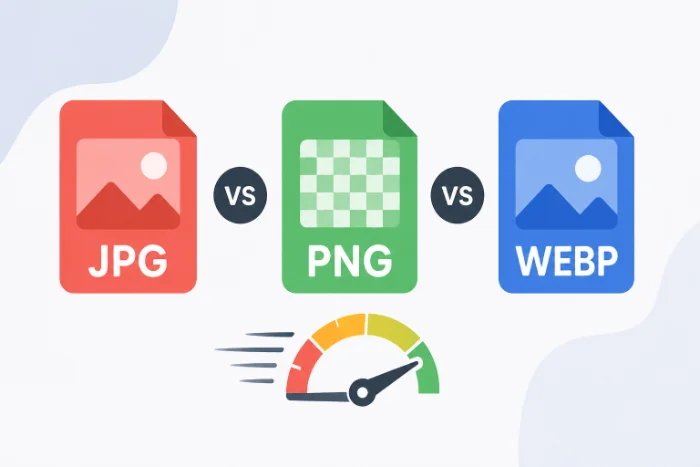
That’s one of the most common and most fixable mistakes on small-business and startup websites. WebP vs PNG vs JPG for web isn’t just a technical footnote — it directly affects load speed, visual sharpness, and whether Google rewards or penalizes your site’s performance. This guide breaks down JPG vs PNG vs WebP in plain language, and tells you exactly which format to use for every type of image on your site.
Why Format Choice Matters
Images are consistently the heaviest resource type on the average webpage. Recent HTTP Archive Web Almanac data puts the median mobile homepage at roughly 2.6 MB, with images making up the largest share — and a typical page still loads 13–19 separate images. Pick the wrong format across even a handful of those, and you’re shipping unnecessary megabytes to every visitor.
That has real business consequences: slower load times mean more visitors abandon the page before it renders; Largest Contentful Paint (LCP), a confirmed Google ranking signal, suffers when your hero image is bloated; and over-compressed graphics look unprofessional before a visitor reads a word of copy. This isn’t a nice-to-have — it’s foundational technical SEO.
Difference Between The Three Formats
JPG (JPEG):
It is the oldest, most universally compatible format. It uses lossy compression, which permanently discards some data to shrink file size, usually invisibly for photos. It has no transparency support, and repeated resaving further degrades quality each time. Best for: product photos, blog images, anything photo-realistic without a transparent background.
PNG:
It is lossless. It preserves every pixel exactly, with no data thrown away. That makes it the safe choice whenever fidelity can’t be compromised, but it produces much larger files, especially for photographs. PNG-8 handles up to 256 colours for simple icons; PNG-24 handles millions of colours plus full transparency. Best for: logos, icons, screenshots, and anything needing a transparent background or sharp text.
WebP:
It is developed by Google, supports both lossy and lossless compression in one format, and unlike JPG, it also supports transparency. Google’s own developer research found WebP lossless images run about 26% smaller than equivalent PNGs, and WebP lossy images typically come in 25–34% smaller than comparable JPEGs at similar quality. Global browser support now sits well above 95%. Its one real weakness: it lacks JPEG’s progressive-loading behaviour, which can matter for very large hero images on slow connections. Best for: the majority of website images by default.
Side-by-Side Comparison
| Feature | JPG | PNG | WebP |
|---|---|---|---|
| Compression | Lossy | Lossless | Both |
| Transparency | No | Yes | Yes |
| Typical file size | Medium | Large | Smallest |
| Best for photos | Yes | No | Yes |
| Best for logos/graphics | No (artifacts) | Yes | Yes |
| Animation | No | No | Yes |
| Browser support | Universal | Universal | ~96%+ |
| Quality loss on re-save | Yes, cumulative | None | None (lossless mode) |
Which Format for Which Image
- Product photography: JPG or WebP — no transparency needed, and WebP gives a smaller file at equal quality, which adds up fast across a large catalogue.
- Logos and icons: PNG or WebP — you need the transparent background and crisp edges; JPG’s compression blurs both.
- Screenshots and how-to graphics: PNG, for the sharp text and fine detail. Convert to WebP if file size becomes a concern in a screenshot-heavy post.
- Hero images and banners: WebP, with a JPG fallback if your builder doesn’t fully support next-gen formats. This is usually your LCP element, so trimming its size has an outsized speed impact.
- Blog featured images: WebP — most CMS platforms and CDNs already optimize for it, and savings compound across hundreds of posts.
- Email marketing and PDFs: JPG or PNG, since some email clients and PDF viewers still don’t render WebP reliably.
Format, SEO, and Core Web Vitals
Google has confirmed that Core Web Vitals factor into page experience signals, and LCP — the time it takes the largest visible element (often an image) to render — is one of the three metrics measured directly from real user data. Independent performance testing has repeatedly shown that switching a hero image from PNG or JPG to WebP can meaningfully cut both file weight and LCP time. PageSpeed Insights and Lighthouse will explicitly flag “Serve images in next-gen formats” when they detect PNG or JPG files that could be smaller as WebP. For a startup competing against sites with bigger performance budgets, this is a technical SEO win that costs nothing but a few minutes of conversion time.
Mistakes Worth Fixing
- Saving everything as PNG “to be safe – The costliest habit — a product photo saved as PNG can be several times larger than the same image as JPG or WebP, with no visible quality benefit.
- Uploading phone photos unedited – Modern phone cameras produce multi-megabyte files far bigger than any web page needs.
- Using JPG for logos – Compression artifacts blur text and edges, and you lose the transparent background entirely.
- Never revisiting old uploads – Sites that live for years often carry hundreds of unoptimized legacy images quietly dragging down every page they appear on.
Converting Without Losing Quality
You don’t need design software to fix this — a few free, browser-based tools handle it in seconds:
- Need a PNG or WebP to work in older systems or an email? Use an Image to JPG Converter.
- Only have a JPG version of your logo but need a transparent background? Use an Image to PNG Converter.
- Preparing images for your site and want the smallest file without losing quality? Use an Image to WEBP Converter — the single highest-impact conversion for site speed.
- None require sign-up, and everything runs directly in your browser.
What About AVIF?
AVIF compresses even further than WebP — often another 20% at comparable quality — and browser support is growing fast. For most small business sites in 2026, though, WebP remains the more practical default: broader compatibility, faster encoding, and native support across nearly every CMS, plugin, and CDN you’re already using. Watch AVIF; don’t feel pressure to switch yet.
Quick Checklist
- Need transparency? → PNG or WebP
- Is it a photo? → JPG or WebP
- File size/speed is the priority? → WebP
- Needs to work absolutely everywhere? → JPG or PNG
- Homepage hero image? → WebP, always
Frequently Asked Questions
Is WebP better than JPG and PNG for websites?
For most use cases, yes — smaller files at equivalent quality, plus transparency support that JPG lacks entirely.
Will converting to WebP hurt quality?
Not noticeably. At a reasonable quality setting, results are visually indistinguishable from the original for most images.
Do all browsers support WebP?
Nearly all current browsers, with global support above 95%. Only very old browser versions lack it.
Why is my site slow even though images look small on screen?
Displayed size and file size aren’t the same — an image can look small in your layout while the underlying file is still several megabytes.
Does image format affect SEO?
Indirectly — format affects file size, which affects load speed and LCP, both part of Google’s page experience signals.

Rishi Pundir is an entrepreneur and author who enjoys exploring the latest business and technology trends, news, and insights across the web. He graduated in computer science and has years of experience in digital marketing. He is also passionate about writing in-depth articles on business, emerging technologies, innovations, digital marketing, and strategies for online business growth. He is the main editor of Trending Business Tips.