Free Online Utility Tools That Save Time & Increase Productivity
AI Generated
Last Updated on August 12, 2026 by Garima Gaur
It’s 4 PM, your to-do list has barely moved, and you’ve just spent ten minutes hunting for a tool to check your word count, another five converting an image, and a few more fixing a broken link. None of that was the actual work — it was the friction around the work. This is the quiet productivity tax that modern professionals pay every single day, and it’s exactly why online utility tools have become one of the most searched, most bookmarked categories on the web in 2026.
As remote and hybrid work stay the default, small, single-purpose browser-based tools are replacing bulky software installs. You don’t need a subscription to count words, convert a case, or check a URL’s status — you need a fast, free, no-login tool that opens in a new tab and gets the job done in seconds. This guide walks through the most useful online utility tools for writers, marketers, SEOs, and developers, and shares practical tips on building them into your daily workflow.
What Makes an Online Utility Tool Actually Worth Using
Not every free tool online is created equal. Before bookmarking one, it helps to know what separates a genuinely useful utility from a gimmicky one.
No Installation, No Sign-Up
The best online utility tools work the moment you land on the page. If a “free” tool asks for an email address or a credit card before you can use its core feature, that’s a sign to look elsewhere.
Instant, Distraction-Free Results
A good utility tool does one job and does it fast — no pop-ups, no forced newsletter sign-ups, no ten-second ad countdown before you can see your word count.
Privacy-Friendly, Client-Side Processing
Increasingly, well-built tools process your text or image directly in the browser rather than uploading it to a server. That matters if you’re pasting client content, unpublished drafts, or business data into a random tool you found through a search.
Text and Writing Utility Tools Every Professional Needs
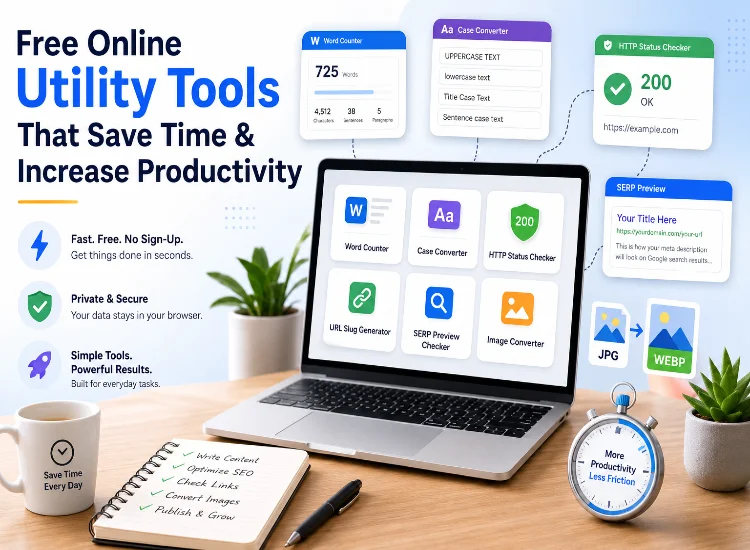
Word Counter: The Writer’s Daily Check-In
A word counter sounds basic, but it’s one of the most-used tools online for a reason. Bloggers use it to hit target lengths, students use it to stay within essay limits, and SEO writers rely on it to keep meta titles and meta descriptions within Google’s display limits. A solid word counter should show live word, character, and sentence counts, plus reading time — useful when you’re planning how long a blog post or LinkedIn caption should be before you even finish drafting it.
Case Converter: A Small Tool With a Big Payoff
Anyone who has ever pasted a heading from a spreadsheet in ALL CAPS, or needed to quickly turn a sentence into Title Case for a headline, knows how much time a case converter saves. Instead of retyping text manually, you paste it once and switch between uppercase, lowercase, sentence case, and title case instantly. It’s a favorite among content teams formatting headlines, developers standardizing variable names, and social media managers cleaning up copy before it goes live.
SEO and Web Utility Tools for Marketers and Developers
This is where utility tools stop being convenience add-ons and start directly affecting rankings, traffic, and user experience — especially for anyone managing a WordPress site or running technical SEO audits.
HTTP Status Checker
Broken links and unexpected redirects quietly damage both user experience and crawl efficiency. An HTTP status checker lets you paste a URL (or a batch of URLs) and instantly see whether it returns a 200, a 301/302 redirect, a 404, or a server error — without opening developer tools or waiting on a full site crawl. It’s especially handy after a migration, a URL structure change, or when auditing backlinks for dead destinations.
URL Slug Generator
Search engines and readers both prefer clean, descriptive URLs over long, keyword-stuffed, or auto-generated ones. A URL slug generator strips a blog title down to a readable, hyphenated permalink automatically — removing stop words, special characters, and extra spacing — so you’re not manually editing the permalink field in WordPress every time you publish.
SERP Meta Tags Preview Checker
Writing a meta title and description is only half the job; knowing how they’ll actually look in Google’s search results is the other half. A SERP meta tags preview checker shows a live mock-up of your listing on both desktop and mobile, flags when your title or description will get cut off, and helps you avoid the awkward truncation that hurts click-through rates. Pairing this with your existing checklist in Google Search Console gives you a fuller picture before you hit publish.
Image Utility Tools for Faster, Lighter Websites
Images are usually the heaviest part of any web page, which makes image utility tools directly relevant to page speed and core web vitals — and, by extension, to search rankings.
Image to WebP Converter
According to Google’s own WebP compression study, lossy WebP images run roughly 25–34% smaller than equivalent JPEGs at the same visual quality, and WebP lossless files are about 26% smaller than PNGs. For a page with a dozen product or blog images, that difference can meaningfully shrink your largest contentful paint and improve your pagespeed insights score. An image to WebP converter lets you batch-convert images without touching command-line tools or design software.
Image to JPG Converter
WebP is fast, but it isn’t accepted everywhere — some older tools, ad platforms, and email clients still expect a standard JPEG. An image to JPG converter handles the reverse conversion in seconds, which is useful when you need a WebP asset to work across every channel, not just your website.
Image to PNG Converter
PNG still has its place when quality can’t be compromised — logos, screenshots, and graphics with transparency or sharp text usually look better as PNG than as a compressed JPEG. An image to PNG converter is the quickest way to get a lossless version of an image without opening a design tool, especially when a client or platform specifically asks for a transparent background.
Quick Comparison: Which Tool Solves Which Problem
| Tool | Best For | Who Uses It Most | Time Saved On |
| Word Counter | Tracking length for blogs, essays, meta descriptions | Writers, students, content teams | Manual counting, re-checking limits |
| Case Converter | Fixing pasted or inconsistent text casing | Writers, developers, social media managers | Retyping headlines and titles |
| HTTP Status Checker | Finding broken links and redirect issues | SEOs, webmasters, developers | Manual link-by-link testing |
| URL Slug Generator | Turning titles into clean, SEO-friendly URLs | Bloggers, SEO teams, CMS editors | Manually editing permalinks |
| SERP Meta Tags Preview Checker | Previewing how a page looks in Google results | SEOs, content marketers | Guesswork on title/description length |
| Image to WebP Converter | Shrinking image size for faster pages | Web developers, bloggers, designers | Slow page loads, poor Core Web Vitals |
| Image to JPG Converter | Making images compatible everywhere | Anyone sharing images across platforms | Format-compatibility troubleshooting |
| Image to PNG Converter | Lossless quality, logos, transparency | Designers, brand teams, developers | Quality loss from over-compression |
Building a Personal Utility-Tool Habit
A few small habits make these tools genuinely stick:
- Keep a short list of 5–6 go-to utility tools bookmarked in one browser folder instead of re-searching each time.
- Run new images through a WebP converter before uploading, as a default publishing step, not an afterthought.
- Check your meta title and description in a preview tool before every publish, not after a ranking drops.
- Batch small text tasks (word counts, case fixes) at the start of an editing session instead of switching mid-flow.
Common Mistakes to Avoid With Free Online Tools
- Pasting sensitive client data or unpublished content into tools with no clear privacy policy.
- Relying on a single HTTP status check instead of re-testing after fixes, since redirect chains can change.
- Ignoring mobile preview when checking SERP meta tags — mobile truncates titles differently than desktop.
- Converting images to WebP but forgetting to add fallback formats for older browsers or platforms that don’t support it.
Pros and Cons of Browser-Based Utility Tools
Pros: free to use, zero installation, work across devices, and update automatically without patches on your end.
Cons: some free tools carry ads or usage caps, quality varies widely between providers, and heavier tasks (bulk image processing, large datasets) may still need dedicated software.
Final Thoughts
None of these tools are flashy, and that’s exactly the point. Free online utility tools work best when they disappear into your workflow — a word counter while you draft, a case converter while you format, a status checker before you publish, a WebP converter before an image goes live. Individually, each one saves a few minutes. Stacked across a week of content, SEO, and web work, that adds up to real hours reclaimed.
This is also why more publishers now build these utilities into their own sites instead of leaving readers to hunt for them elsewhere. Trending Business Tips, for instance, hosts a word counter, case converter, meta tag preview checker, and slug generator alongside its regular content, so a writer can check a word count or preview a meta title without leaving the page. That reflects where online utility tools are headed — less a standalone tool site, more available wherever the work is already happening.
Start small: pick two or three tools from this list that match tasks you already repeat manually, bookmark them, and build them into your existing routine rather than treating them as a one-off fix. The goal isn’t to collect more tools — it’s to spend less time on the busywork around your actual work.
Frequently Asked Questions
Are free online utility tools safe to use?
Most reputable tools are safe for everyday text and images, but avoid pasting confidential or client-sensitive data into any tool that doesn’t clearly state its privacy practices.
Do I need to install anything to use these tools?
No. Genuine online utility tools run entirely in your browser — there’s nothing to download or install.
Which tool should I use to check if a page redirects correctly?
An HTTP status checker is built exactly for this — it shows you the live status code and any redirect chain for a URL in seconds.
Why does my meta description preview cut off in Google?
Google truncates titles and descriptions past a certain pixel width, not just a character count. A SERP meta tags preview checker shows you the real cutoff before you publish.
Is WebP better than JPEG for every image?
For most web use, yes — WebP files are typically smaller at equivalent quality. JPEG still makes sense for maximum compatibility with older tools or platforms that don’t support WebP.
Can a case converter handle large blocks of text?
Yes, most case converters handle full paragraphs or documents, not just single words or short phrases.
How is a URL slug different from a regular page title?
A slug is the URL-friendly version of your title — shorter, lowercase, hyphenated, and stripped of special characters — used specifically in the page’s web address.

Garima Gaur is a senior writer and also a renowned guest author on many popular platforms like goodmenproject.com. She loves to write on topics like business, finance, technology, marketing, and many more.