
Free Online Utility Tools Every Blogger Should Bookmark in 2026
AI Generated
Last Updated on October 8, 2026 by Rishi
You finish a 1,400-word draft, paste the headline into your CMS, and then the small stuff starts. Is the title too long? Why does the URL look like a pile of percent signs? Why is your featured image 3 MB? None of this is hard. But together, it eats the time you wanted to spend writing.
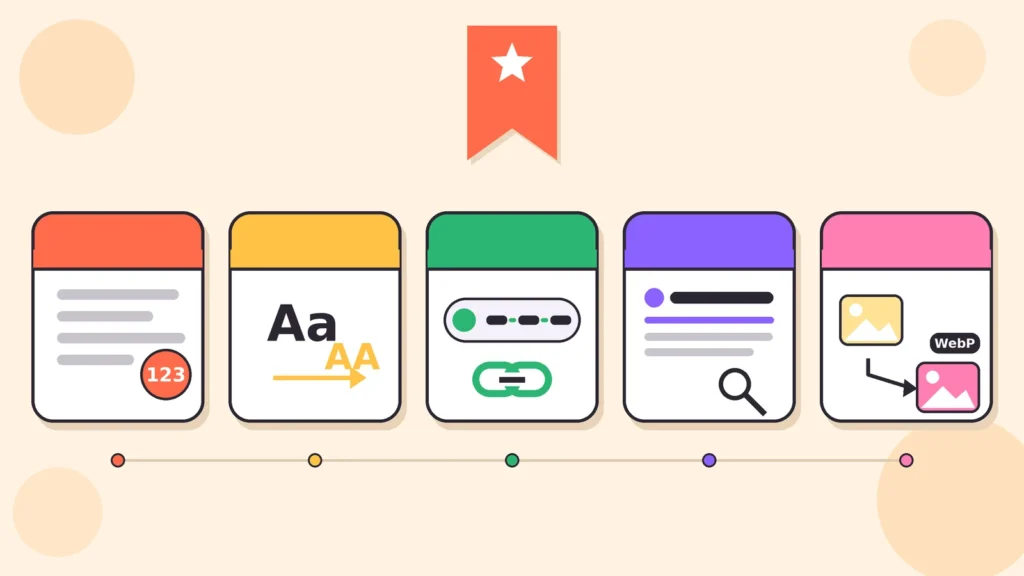
That’s where a handful of free online utility tools earn their place on your bookmarks bar. A word counter, a case converter, a slug generator, a meta tags preview, an HTTP status code checker, and a few image converters (image to JPG, image to PNG and image to WebP) can handle these chores in seconds, with nothing to install.
They matter more than ever. Search results keep changing, page speed is part of user experience, and readers leave messy, slow pages quickly. In this guide, you’ll learn what each tool does, how to use it well, and where free tools can go wrong.
Why Small Utility Tools Beat Big Software for Daily Blogging
The popular roundups we reviewed, including HubSpot’s bookmark list for bloggers, mostly cover broad categories: keyword research, analytics, grammar checkers and templates. Those are useful. But they skip the tiny jobs you repeat on every post: counting, formatting, naming, previewing and converting.
Utility tools suit those jobs because they are:
- Fast: paste, click, copy.
- Low-risk: no subscription, no setup.
- Repeatable: you’ll use them on every single post.
Word Counter: Know Your Draft Before You Publish
A word counter tells you the number of words, characters, sentences and paragraphs in a piece of text. Many also estimate reading time.
When a Word Counter Actually Helps
- Guest posts and client briefs: many come with strict length limits.
- Meta descriptions and social captions: character counts matter here.
- Editing: trimming a bloated draft by 10% is easier when you can see the number.
- Planning: reading-time estimates help you decide whether a long post needs a summary or table of contents.
Don’t Chase a Magic Number
There’s no perfect blog post length. Even HubSpot’s list admits there is no “right answer” and positions the counter as a handy check. Let the question decide length. A post on resizing an image needs fewer words than a full buying guide.
One practical tip: paste plain text, not formatted text. Different counters treat hyphenated words and URLs differently, so use one tool consistently.
Case Converter: Fix Headlines and Pasted Text in One Click
A case converter switches text between UPPERCASE, lowercase, Sentence case and Title Case. Many also offer developer-style formats like camelCase, snake_case and kebab-case.
Here’s where it saves time:
- Headline consistency: pick Title Case or Sentence case and use it on every post.
- Rescuing text: all-caps notes or PDF copy become readable instantly.
- Preparing file names: kebab-case gives you clean, hyphenated image names.
- Cleaning labels: table headers and button text stay uniform.
Always review the result. Title case tools disagree about small words like “of” or “in”, and they can mangle brand names such as WordPress or iPhone. Check the output against your style guide, whether that’s AP or Chicago.
Slug Generator: Create Clean, SEO-Friendly URLs
The slug is the last part of your URL, such as /free-blogger-tools. A slug generator turns your title into a lowercase, hyphenated string and strips out symbols and stray punctuation.
Google’s URL structure guidelines recommend readable words over long ID numbers, and hyphens instead of underscores to separate words. A generator applies those rules automatically.
| Post title | Messy URL | Clean slug |
| 10 Free Tools Every Blogger Should Bookmark in 2026 (Updated!) | /10-free-tools-every-blogger-should-bookmark-in-2026-updated | /free-blogger-tools |
| Word Counter: How to Use It | /Word_Counter:_How_to_Use_It | /word-counter-guide |
Slug Rules Worth Following
- Use lowercase letters and hyphens only.
- Keep it short and drop filler words where meaning stays clear.
- Skip years and numbers that will go stale.
- Set the slug before publishing. If you change a live URL, add a 301 redirect from the old one.
If you blog in Hindi or another language, Google’s guidance supports using words in your audience’s language, including transliterated words. In WordPress, choose the “Post name” permalink structure and edit the slug field on each post.
Meta Tags Preview: See Your Search Snippet Before Google Does
Your meta title and meta description are the two lines people read in search results. A meta tags preview tool shows a mock-up of how they might look on desktop and mobile, and flags text that may get cut off.
Common working ranges are about 50 to 60 characters for titles and 150 to 160 for descriptions. Treat those as guides, not rules. Truncation is based on pixel width, so a title full of wide letters can be cut sooner.
Also remember that Google decides what to display. Its documentation says snippets may come from the meta description or from the page itself, depending on the query. So the preview isn’t a promise. It’s a way to catch obvious problems early.
How to Write Meta Tags That Hold Up
- Put your main topic near the start of the title, naturally.
- Write a unique title and description for every page.
- Make the description match what the page really delivers.
- Check the Open Graph preview too, if your tool offers it, so social shares look right.
HTTP Status Code Checker: Catch Broken Links and Redirect Problems
Every URL replies to a browser or crawler with a status code. An HTTP status code checker lets you paste a URL and see that reply, plus any redirect steps along the way.
Google’s documentation on HTTP status codes explains how its crawlers treat each one. The short version for bloggers:
- 200: the page works normally.
- 301 or 308: a permanent redirect. Use it when you change a slug.
- 404 or 410: the page is missing or gone. Google doesn’t index URLs that return 4xx codes, and removes already indexed ones.
- 5xx: a server error. Google’s crawlers temporarily slow down when they see these.
Run the checker after changing a slug, deleting a post or moving to HTTPS. Look for redirect chains, where one URL hops through several others, and point the old URL straight to the final page. Also watch for soft 404s, where a “not found” page returns 200. If a page is truly gone, Google recommends returning a real 404 or 410.
Image Converters: JPG, PNG and WebP Explained
Images are often the heaviest part of a blog post. Google’s Largest Contentful Paint guidance says a good LCP is 2.5 seconds or less, measured at the 75th percentile of page loads. A big hero image is a common culprit when you miss that mark.
Image to JPG Converter
JPG suits photographs and works everywhere. Use an image to JPG converter to turn phone formats like HEIC, or oversized PNG photos, into something light and universal. JPG has no transparency, so see-through areas turn solid. It’s also lossy, so repeated re-saving gradually degrades quality.
Image to PNG Converter
PNG is lossless and supports transparency. That makes an image to PNG converter handy for logos, screenshots, charts and infographics with sharp text. The trade-off is size: PNG photos get heavy fast. And converting a blurry JPG to PNG won’t bring back detail that’s already lost.
Image to WebP Converter
WebP is the format most bloggers should default to. According to Google’s WebP documentation, lossy WebP files are 25 to 34 percent smaller than comparable JPEGs, and lossless WebP is 26 percent smaller than PNG. It also supports transparency, and Chrome, Safari, Firefox and Edge all support it.
An image to WebP converter is the quickest way to shrink existing uploads. Newer WordPress versions accept WebP uploads, though it’s worth testing on your own setup.
| Format | Best for | Transparency | Watch out for |
| JPG | Photos, wide compatibility | No | Lossy; quality drops with repeated saves |
| PNG | Logos, screenshots, charts | Yes | Large files for photos |
| WebP | Most blog images | Yes | Test on your CMS first |
A Simple Image Routine
- Resize the image to the largest size your layout actually displays.
- Convert to WebP (or JPG for photos, PNG for transparency).
- Name the file in kebab-case, like free-word-counter-tool.webp.
- Add descriptive alt text when you upload.
- Keep your original files in a separate folder.
Your Quick Pre-Publish Workflow
- Paste the draft into a word counter and compare it against your brief.
- Run headline and subheads through a case converter for consistency.
- Generate the slug from your final title.
- Write the meta tags and check them in a preview tool.
- Convert, compress and name your images.
- After publishing, check the live URL’s status code.
Pros and Cons of Free Online Utility Tools
The upside: they cost nothing, need no install and work on any device.
The downsides:
- Privacy: you may be uploading unpublished drafts or client images to a stranger’s server.
- Limits: file sizes, batch conversions and daily uses are often capped.
- Ads and inconsistency: results and interfaces vary between tools.
- Longevity: free tools can change or disappear.
For sensitive files, prefer online tools that clearly state they process files in your browser, or work offline. Google, for instance, offers a free cwebp command-line converter for Linux, Windows and macOS.
Mistakes to Avoid
- Treating character limits as hard rules instead of guides.
- Changing a live slug without a 301 redirect, leaving the old URL as a 404.
- Over-compressing images until they look blurry.
- Expecting a format change to improve quality.
- Uploading confidential drafts or client assets to unknown sites.
- Stuffing keywords into slugs, titles or descriptions.
Conclusion: Bookmark These Tools and Save Time on Every Post
A word counter keeps drafts on target. A case converter makes text consistent. A slug generator gives you clean URLs, a meta tags preview catches snippet problems, a status code checker finds broken links, and image converters keep your pages light.
None of these tools replaces good writing. They clear the small obstacles so your ideas get through. Pick the ones you’ll actually use, bookmark them in a single folder, and run your next post through the quick workflow. Your readers will never notice the work. They’ll just notice a page that loads fast and reads well.
Frequently Asked Questions
What are the best free online utility tools for bloggers?
Start with a word counter, case converter, slug generator, meta tags preview, status code checker and image converters. Then add keyword research and analytics tools as you grow.
Is there an ideal word count for a blog post?
No. Length should match the question you’re answering. Cover the topic fully, then stop.
What’s the difference between a 301 and a 404?
A 301 permanently redirects to a new URL. A 404 means the page wasn’t found. Use 301 when a page moves, and 404 or 410 when it’s gone.
How long should a meta title and description be?
Aim for roughly 50 to 60 characters for titles and 150 to 160 for descriptions. Since truncation depends on pixel width, use a preview tool to confirm.
Does Google always show my meta description?
No. Google may use text from the page instead, depending on the search. Write a good description anyway.
Which image format is best for blogs: JPG, PNG or WebP?
WebP is usually best for the web because of its smaller file sizes. Use JPG for broad compatibility and PNG when you need lossless quality.
Does converting JPG to PNG improve quality?
No. Conversion can’t restore detail already lost to compression. It only changes the file type.
Are free online converters safe?
Many are fine for public images. For private or client files, choose browser-based tools or offline software.
Related Article: Free Online Utility Tools to Improve Productivity

Rishi Pundir is an entrepreneur and author who enjoys exploring the latest business and technology trends, news, and insights across the web. He graduated in computer science and has years of experience in digital marketing. He is also passionate about writing in-depth articles on business, emerging technologies, innovations, digital marketing, and strategies for online business growth. He is the main editor of Trending Business Tips.