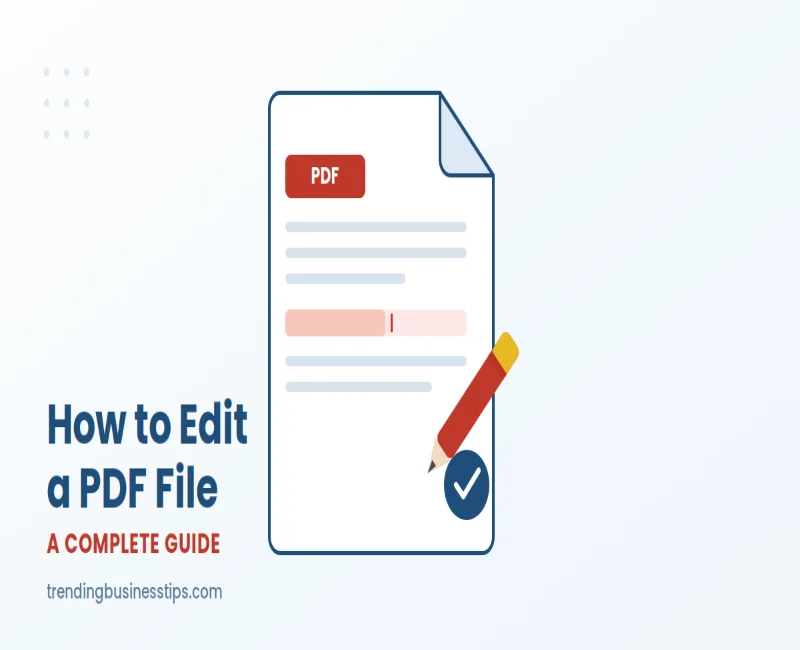
How to Edit a PDF File in a PDF Editor: A Complete Guide
AI Generated
Last Updated on September 24, 2026 by Rishi
You spot a typo in a signed contract five minutes before it needs to go out. Or a client sends over a form that needs three fields updated before Friday. In moments like these, the same question comes up: how to edit a PDF file without breaking the layout, losing the fonts, or paying for software you’ll use twice a year.
PDFs were built to stay fixed — that’s the whole point of the format — which is exactly why editing one feels harder than editing a Word document. That’s changed a lot recently: browser-based tools, AI-assisted editors, and better OCR (optical character recognition) mean you no longer need a desktop install or an Adobe subscription just to fix a line of text.
This guide walks through exactly how to update a PDF file, which tool fits which situation, how to make changes in PDF files without wrecking formatting, and the mistakes that trip up most people the first time.
What Does “Editing a PDF” Actually Mean?
A PDF (Portable Document Format) isn’t a live document the way a .docx file is. It locks in text, images, and layout so the file looks identical on any device, which is great for consistency and tricky for quick edits, since the tool has to reach into that locked layout and rebuild the parts you change.
Editing can mean very different things depending on the file:
- Text edits — fixing a typo, updating a date, changing a price or a name
- Structural changes — reordering, deleting, or merging pages
- Visual edits — swapping a logo or image, resizing a photo, cropping the page
- Form and signature work — filling fields, adding a legally binding e-signature
- Security changes — adding, removing, or updating password protection
Editable Text vs. a Scanned Image: A 5-Second Check
Before choosing a tool, click-and-drag to select a single line of text in the file.
- If the text highlights word by word, it’s a real, editable text layer.
- If your cursor selects the entire page as one block, it’s a scanned image and needs OCR before any editor can touch the text.
This one check saves a lot of frustration — it’s the most common reason an editor seems “broken” when the real issue is the source file.
How to Edit a PDF File: Step-by-Step
The exact buttons vary by tool, but the core workflow is nearly identical everywhere:
- Keep a backup. Duplicate the original file before you touch anything — conversions and edits can occasionally shift formatting, and you want a clean copy to fall back on.
- Open the file in your chosen editor, either by uploading it to a browser-based tool or opening it in desktop software.
- Switch into edit mode, usually labeled “Edit,” “Edit Text,” or shown as a pencil icon.
- Click directly on the text, image, or field you want to change. Most modern editors turn the selected area into an editable text box automatically.
- Make your changes — update the wording, swap the image, adjust the font size, or reorder pages using the thumbnail view.
- Review the whole document, not just the section you edited, since layout shifts can ripple into nearby paragraphs.
- Save or export as a PDF (not a different format) so your changes stay locked in the same shareable structure.
Best Ways to Edit a PDF File in 2026
There’s no single “best” PDF editor — the right one depends on how often you edit PDFs, how sensitive the content is, and whether you’re willing to pay for extra features.
1. Free Online PDF Editors
If you want to edit a PDF online for free, browser-based tools like Smallpdf, Sejda, and pdfFiller let you upload a file, make quick edits — text boxes, images, shapes, annotations — and download the result without installing anything. They’re ideal for occasional, low-stakes edits.
- Best for: one-off edits, quick annotations, form filling
- Limitations: file size caps, daily task limits on free tiers, and most add content on top of the page rather than truly rewriting the original text layer
- Privacy note: you’re uploading the file to a third-party server, so avoid this route for highly confidential documents
2. Edit a PDF Without Adobe Acrobat: Desktop Software
Adobe Acrobat Pro remains the industry benchmark, with the most complete toolkit for editing text, building complex forms, applying secure redaction, and running OCR on scanned files. But if you’d rather edit a PDF without Adobe Acrobat, alternatives like Foxit, Nitro PDF, and PDFelement offer similar core editing at a lower price, and several now include AI-assisted proofreading and translation.
- Best for: frequent editing, business or legal documents, scanned files, digital signatures with legal weight
- Limitations: subscription or license cost, steeper learning curve than a simple online tool
3. Convert Through Word or Google Drive
If you only need to change a paragraph or two, importing the PDF into Microsoft Word or Google Drive (which both convert a PDF to editable text automatically) can work well. Make your edits, then export back to PDF.
- Best for: text-heavy documents with simple layouts
- Limitations: complex layouts, tables, and custom fonts often shift or break during conversion
4. Edit a PDF on iPhone or Android
Most major PDF editors now offer a mobile app or cloud-accessible browser version, so you can mark up or lightly edit a file straight from your phone. It’s useful for reviewing and annotating on the go, though deeper text editing is still easier on a desktop screen.
How to Update a PDF File Without Ruining the Formatting
The biggest complaint people have after editing a PDF isn’t that the edit failed — it’s that the rest of the page shifted. A few habits prevent most of that:
- Always edit a copy, never the only version of the original file
- Match the existing font and size rather than letting the tool auto-select a default
- Make small edits and review the page after each one instead of stacking multiple changes before checking
- For scanned documents, run OCR first — editing an image-based PDF directly usually distorts the layout
- Export back to PDF format specifically, not Word or another file type, to preserve the fixed layout other people expect
Editing Password-Protected or Restricted PDFs
If a file has a password or editing restrictions, you need the password or the owner’s permission before any editor — free or paid — will let you make changes. Forcing past this with third-party “crackers” is risky and can violate the terms you agreed to when the file was shared. If you own the file and forgot the password, most desktop editors include a legitimate password-removal tool once ownership is verified.
Common Mistakes to Avoid When Editing PDFs
- Skipping the backup step and losing the original if an edit goes wrong
- Editing a scanned PDF as if it has a live text layer, which distorts words instead of replacing them
- Uploading confidential contracts to an unfamiliar free online tool
- Saving the final file in the wrong format when a PDF was specifically requested
- Ignoring version control on shared documents, leading to conflicting edits
Free vs. Paid PDF Editors: Which Should You Choose?
| Need | Best Fit | Typical Cost | Watch Out For |
| Occasional text edits | Free online editor (Smallpdf, Sejda) | Free – $/month if limits are hit | Daily task caps, file size limits |
| Frequent, heavy editing | Adobe Acrobat Pro or PDFelement | $15–$25/month | Subscription cost, learning curve |
| Scanned or image-based PDFs | Editor with built-in OCR | Varies by plan | OCR accuracy on poor scans |
| Highly confidential files | Offline desktop software | One-time or subscription | No cloud backup unless you add one |
| Quick one-off conversion | Google Drive or Word import | Free | Layout can shift after conversion |
Related Article: Free vs. paid PDF editors
Pros and Cons: Editing PDFs Online vs. Offline
Online Editors
- Pros: no installation, works on any device, fast for small edits
- Cons: file size limits, privacy trade-off, less control over fonts and layout
Offline / Desktop Editors
- Pros: stronger editing precision, better OCR, no upload of sensitive files
- Cons: upfront cost, longer to learn, tied to one device unless synced
Where PDF Editing Is Headed: AI and Automation
AI features are showing up across nearly every major PDF tool — smarter OCR for messy scans, AI-assisted proofreading and translation, and chat-style assistants that let you say “update the date on page 2” instead of clicking through menus. Test a free tier before committing to a paid plan, since AI accuracy still varies by tool and document quality.
Who Actually Needs This Skill
Legal teams update contracts constantly, HR adjusts onboarding paperwork, students tweak resumes for each application, and small business owners edit invoices and client agreements without wanting a full Adobe license for occasional changes. If you’ve ever wished you could fix one field without rebuilding an entire document, this is the gap these tools close.
Final Thoughts
Editing a PDF file no longer means fighting your own paperwork or paying for software you’ll rarely open. The right approach comes down to three questions: how often you edit PDFs, how sensitive the file is, and whether the document is a live text file or a scanned image. For occasional fixes, a free online editor gets the job done in minutes; for frequent or sensitive work, a desktop tool like Acrobat Pro, Foxit, or PDFelement pays for itself in saved time.
Whichever route you take, the habits matter more than the tool: back up the original, confirm whether you’re working with real text or a scanned image, and always export back to PDF. Start with a free tier, test it on a real document, and you’ll know within minutes whether it fits how you actually work.
Frequently Asked Questions
How can I update a PDF file for free?
Use a free online PDF editor such as Smallpdf or Sejda. Upload the file, click into the text or image you want to change, and export the result as a new PDF. Free tiers usually cap file size or the number of edits per day.
Can I edit a PDF without Adobe Acrobat?
Yes. Browser-based tools, Google Drive, Microsoft Word imports, and lower-cost alternatives like Foxit or PDFelement can all handle common edits without an Acrobat subscription.
Why can’t I select or edit the text in my PDF?
The file is likely a scanned image rather than a text-based PDF. Run it through an OCR tool first, which converts the image into recognizable, editable text.
Is it safe to edit sensitive documents in an online PDF editor?
It’s better to use offline desktop software for highly confidential files, since online tools require uploading your document to a third-party server.
How do I edit a PDF on my phone?
Most major PDF editors offer a mobile app or a mobile-friendly browser version. These work well for quick annotations and form filling, though detailed editing is usually easier on a larger screen.
Will editing a PDF change its formatting?
It can, especially with scanned documents or complex layouts. Editing a backup copy, matching existing fonts, and checking the page after each change reduces the risk.
How do I edit a password-protected PDF?
You need the password or the file owner’s permission first. If you own the file and forgot the password, most desktop editors include a legitimate password-removal tool once ownership is verified.
What’s the best free PDF editor right now?
There’s no single winner — Smallpdf and Sejda are strong for quick text and image edits, while PDFelement’s free tier adds basic OCR. The best fit depends on your file size and how many edits you need per day.
How do I convert a PDF to an editable Word document?
Open the PDF directly in Microsoft Word, or upload it to Google Drive and open it with Google Docs — both convert the text automatically. Complex layouts and tables may shift, so check the result before sending it on.
What’s the difference between editing and annotating a PDF?
Editing changes the actual content — the underlying text, images, or structure. Annotating adds notes, highlights, or comments on top of the page without altering the original content underneath.
Related Article: Free Online Utility Tools That Save Time & Increase Productivity

Rishi Pundir is an entrepreneur and author who enjoys exploring the latest business and technology trends, news, and insights across the web. He graduated in computer science and has years of experience in digital marketing. He is also passionate about writing in-depth articles on business, emerging technologies, innovations, digital marketing, and strategies for online business growth. He is the main editor of Trending Business Tips.